PSA Online Appointment Not Working? Common Fixes Explained
You cleared your schedule, set aside 30 minutes, and sat down to book your slot only to find that the online appointment PSA portal is not responding the way it should. Maybe the page will not load at all. Maybe the calendar shows no available slots no matter which outlet you try. Maybe you completed the booking form and clicked submit, but the confirmation email never arrived. Or maybe you keep hitting the same error message every time you try to proceed.
These are among the most common frustrations Filipino citizens report when trying to use the PSA appointment system and the good news is that every single one of them has a known cause and a practical fix. This guide covers every technical and procedural issue that prevents the PSA Online Appointment System from working correctly, with clear solutions for each one.
Understanding the PSA Online Appointment System in 2026
Before troubleshooting specific issues, it helps to understand how the system works and what can go wrong at each stage.
The PSA Online Appointment System at appointment.psa.gov.ph is a web-based government portal that manages slot bookings for all PSA Civil Registration System outlets nationwide. The system uses:
- A real-time slot database that updates available dates as bookings are made and cancelled
- OTP (One-Time Password) verification via SMS to confirm your mobile number and finalize the booking
- Email delivery of the confirmation slip and QR code after successful booking
- Browser-based sessions that time out after periods of inactivity
Technical issues can arise at any of these points from the initial page load through to confirmation email delivery. Understanding which stage failed helps you apply the right fix rather than repeatedly attempting the same broken process.
Issue 1: The PSA Appointment Website Won’t Load or Is Very Slow
The most basic problem is that the page simply does not open, loads indefinitely, or displays a browser error.
Why it happens:
The PSA appointment portal, like all government websites, has limited server capacity. During peak periods particularly the April to June enrollment season and during announced PSA service campaigns thousands of users attempt to access the site simultaneously, causing significant slowdowns or temporary unavailability.
Additionally, scheduled maintenance windows can take the portal offline during certain hours, typically late at night or on weekends.
Fixes:
Try a different time of day. Traffic on the PSA appointment portal is lowest between 10:00 PM and 6:00 AM. If you are encountering slow loading or errors during business hours or early evening, switching to a late-night session often resolves the issue entirely.
Check your internet connection. Before assuming the portal is down, verify that your connection is working normally. Try loading a different website. If other sites load but the PSA portal does not, the issue may be server-side.
Clear your browser cache and cookies. Cached data from previous visits can conflict with the portal’s current session requirements. In Google Chrome, press Ctrl + Shift + Delete, select “All time” as the time range, check “Cached images and files” and “Cookies and other site data,” and clear the data. Then reload the PSA portal.
Try a different browser. The PSA appointment system works most reliably on Google Chrome and Mozilla Firefox. If you are using Microsoft Edge, Safari, or an older browser version, switching to an updated Chrome or Firefox version often resolves compatibility issues.
Try a different device. If the portal is not working on your laptop, try your smartphone, or vice versa. Device-specific issues particularly with browser settings, security software, or ad blockers sometimes affect one device but not another.
Disable VPN if active. Virtual Private Networks route your traffic through servers in other locations and can interfere with government portals that restrict access by geographic region. If you have a VPN running, disable it and try accessing the portal again with your actual IP address.
Check if the site is down for everyone. If none of the above fixes work, the portal may genuinely be down for maintenance or due to server issues. Wait one to two hours and try again. Government portal maintenance is usually brief and resolved within a few hours.
Issue 2: No Available Appointment Slots Showing
You select your preferred PSA outlet, choose a month, and the entire calendar is grayed out with no bookable dates, not next week, not next month.
Why it happens:
Available PSA appointment slots fill up quickly sometimes within hours of being released particularly for popular outlets in Metro Manila. During enrollment season, slots at outlets in Quezon City, Manila, Makati, and other high-density areas can be completely booked for weeks in advance.
The calendar does not show dates beyond the currently bookable window. If PSA has not yet released slots for the next month, the calendar will appear empty even though appointments will eventually become available.
Fixes:
Try different outlets. The booking system covers all PSA CRS outlets nationwide. If your nearest outlet is fully booked, check outlets in adjacent cities or municipalities. Less central locations particularly in suburban or provincial areas often have more available slots.
Check the portal at different times of day. New appointment slots are typically released at the start of each business day. Checking early in the morning before 8:00 AM gives you the best chance of finding freshly released slots before they are taken by other applicants.
Check back in a few days. Cancelled appointments create openings in previously fully booked calendars. These openings appear in real time as other applicants cancel. Checking the portal daily for two to three days often reveals newly available slots.
Widen your date range. If you are only looking one to two weeks ahead, expand your search to four to six weeks. Slots further in the future are often available when near-term dates are fully booked.
Consider PSA helpline online ordering as an alternative. If appointment slots are completely unavailable across all nearby outlets and you cannot wait weeks, ordering your PSA birth certificate online through PSA helpline is a fully valid alternative. No appointment is needed, delivery is nationwide, and the document is just as authentic as one obtained in person. This is the fastest alternative when the appointment system is congested.
Issue 3: OTP Not Received
You filled in your mobile number and clicked to receive the OTP, but nothing arrived. You have been waiting for several minutes and the verification step is stuck.
Why it happens:
OTP delivery depends on the SMS network connecting PSA’s messaging server to your mobile carrier. Delays or failures can occur due to:
- Network congestion on your mobile carrier during peak hours
- The mobile number entered does not match the registered number in the system
- The mobile number was entered with a typo
- Your phone’s SMS inbox is full
- Your carrier is blocking automated SMS messages
- The OTP was delivered but expired before you entered it (OTPs typically have a 5-minute validity window)
Fixes:
Wait a full three minutes before requesting a new OTP. OTP delivery can sometimes take two to three minutes during network congestion. Do not click “Resend OTP” immediately give the first one time to arrive.
Check your SMS inbox carefully. Look for a message from a short-code or automated number rather than a named contact. Check that your inbox has not been filtered to a spam or promotional folder by your messaging app.
Verify the mobile number entered. Go back and confirm that you typed your mobile number correctly including the correct prefix (0917, 0918, 0927, etc.). A single wrong digit means the OTP went to someone else’s phone.
Clear your SMS inbox if it is full. Some phones stop receiving new messages when the inbox storage is at capacity. Delete older messages and try again.
Try a different mobile number. If you have access to a second Philippine mobile number, a family member’s number or a secondary SIM try entering that number instead. This helps determine whether the issue is specific to your number or carrier.
Switch mobile networks. If your current SIM is on Globe and OTPs are not arriving, try a Smart or DITO SIM. Carrier-specific issues sometimes affect OTP delivery for specific networks.
Try at a different time. OTP delivery failures are more common during high-traffic periods. Attempting your booking during off-peak hours late evening or early morning often resolves this issue.
Issue 4: Confirmation Email Not Received
When you completed the booking process successfully the portal displayed a “Booking Confirmed” message but the confirmation email with your QR code and appointment slip never arrived in your inbox.
Why it happens:
The confirmation email may have been delivered but routed to your spam or junk folder. Automated emails from government portals are frequently flagged by email filters as potential spam due to the format of their sender address or subject line.
Alternatively, if you entered your email address with a typo during booking, the confirmation was sent to a non-existent or incorrect address.
Corporate and work email accounts sometimes block automated emails from external government portals. Personal email accounts Gmail and Yahoo are far more reliable for receiving PSA appointment confirmations.
Fixes:
Check your spam and junk folders immediately. This resolves the issue in the majority of cases. Look for an email from appointment.psa.gov.ph or any PSA-related sender address. If you find it in spam, mark it as “Not Spam” or “Safe Sender” to prevent future emails from being filtered.
Search your inbox by keyword. Use your email’s search function and search for “PSA,” “appointment,” “Civil Registration,” or your reference number if you noted it during booking. The email may have arrived but is difficult to find in a busy inbox.
Log into the appointment portal and retrieve your booking. If you received a reference number during booking shown on screen before the email was sent you can log into appointment.psa.gov.ph and retrieve your appointment details using that reference number. This allows you to access and re-download your confirmation slip even without the email.
Contact PSA helpline for retrieval. If you cannot find the email and do not have your reference number, call the PSA helpline with your registered email address, mobile number, and the date you placed the booking. Support staff can retrieve your booking details and resend the confirmation.
Use a personal Gmail or Yahoo account for future bookings. Corporate email addresses school emails, company domains, and government office addresses frequently block or filter automated government emails. Using a personal Gmail or Yahoo account ensures the confirmation email arrives reliably every time.
Issue 5: Error Messages When Submitting the Booking Form
You fill out the booking form completely, click submit, and receive an error message instead of a confirmation. Common error messages include “Session Expired,” “Invalid Data,” “CAPTCHA Verification Failed,” or a generic server error.
Why it happens:
Session Expired: The PSA appointment portal has a session timeout of approximately 15 to 20 minutes. If you take longer than this to complete the form perhaps because you stepped away or had to look up information the session expires and your data cannot be submitted.
CAPTCHA Verification Failed: The CAPTCHA (robot verification) check failed either because it was not completed, because the browser could not render it correctly, or because the verification expired before the form was submitted.
Invalid Data: One or more fields contain information the system does not accept an incorrectly formatted mobile number, an email address in the wrong format, or a name field with unsupported characters.
Server Error: Temporary server overload or maintenance is preventing submissions from being processed.
Fixes:
For Session Expired errors: Do not use the browser’s back button. Start the booking process fresh from the beginning. This time, gather all the information you need before opening the form with your name, mobile number, and email address so you can complete it in one sitting without pausing.
For CAPTCHA errors: Reload the page to generate a fresh CAPTCHA. Complete the verification immediately before submitting the form. If the CAPTCHA image is not loading, try refreshing the page or switching browsers.
For Invalid Data errors: Review every field carefully. Mobile numbers should be entered in the format 09XXXXXXXXX 11 digits starting with 09, no spaces, no hyphens. Email addresses must contain the @ symbol and a valid domain. Names should use only standard letters to avoid special characters that are not part of the English or Filipino alphabet.
For Server Errors: Wait five to ten minutes and try again. Server errors are typically temporary and resolve on their own.
Issue 6: Booking Confirmed But QR Code Is Blurry or Not Scanning
Your appointment slip arrived and the booking was confirmed, but when you try to present the QR code at the PSA outlet, the scanner cannot read it either because the image is too small on your phone screen or because the printed copy came out blurry.
Fixes:
Increase screen brightness. Hold your phone at maximum screen brightness when presenting the QR code. Low brightness is the most common reason a QR scanner fails to read a code.
Zoom in on the QR code. Open the attachment and pinch to zoom in until the QR code fills most of your screen. The scanner only needs to read the code; it does not need to see the surrounding text.
Print a clear copy. If you are printing your appointment slip, print in black and white at the highest quality setting your printer allows. Blurry printouts are almost always caused by low-ink cartridges or low print quality settings.
Re-download the attachment from your email. If the attachment appears blurry on your phone, download it again sometimes the preview version is compressed. Open the full-quality download.
Request a reprint at the outlet. If none of the above works, approach the PSA outlet’s information desk and explain that your QR code is not scanning. Staff can manually verify your appointment using your reference number and registered mobile number.
Issue 7: Account or Login Issues
You previously created an account on the PSA appointment portal but cannot log in. You have forgotten your password, your account appears locked, or the portal does not recognize your credentials.
Fixes:
Use the “Forgot Password” function. On the login page, click “Forgot Password” and enter your registered email address. A password reset link will be sent to that email. Check your spam folder if the reset email does not arrive within five minutes.
Verify you are using the correct email. If you created the account with a personal email but are trying to log in with a work email or vice versa the credentials will not match. Try the alternate email you may have used during registration.
Contact PSA helpline for account recovery. If you cannot recover access through the password reset function, call with your registered mobile number and any booking reference numbers you have on record. Support staff can verify your identity and assist with account recovery.
Issue 8: Booking Cancelled Without Your Action
You confirmed your booking and received a confirmation slip, but when you check the portal later, the appointment shows as cancelled even though you did not cancel it.
Why it happens:
PSA’s system enforces several automatic cancellation triggers. If you have already booked multiple appointments for the same document across different dates, the system may cancel duplicates. Payment-related cancellations occur in some cases where the booking validation step was not fully completed. In rare cases, system errors during high-traffic periods result in bookings that appear confirmed but were not fully committed to the database.
Fixes:
Contact PSA helpline immediately. Report the unexpected cancellation with your reference number and confirmation email. In many cases, PSA support can manually verify whether a valid booking existed and advise on the next steps.
Do not book multiple duplicate appointments. Each person should have only one active appointment for a given document type. Duplicate bookings risk automatic cancellation of all slots.
Rebook promptly. If the cancellation cannot be reversed, return to the appointment portal and rebook as quickly as possible. Keep all documentation from your original booking as evidence in case of any dispute.
Issue 9: PSA Appointment System Showing Wrong Date After Confirmation
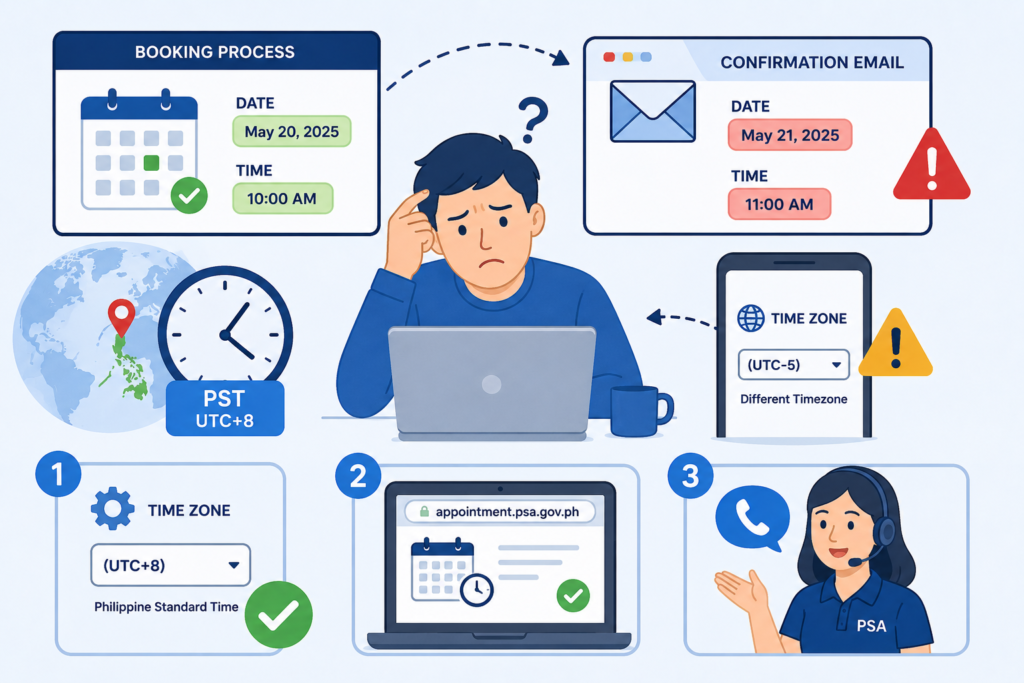
After completing your booking, the confirmation email shows a different date or time than what you selected during the booking process.
Why it happens:
This typically occurs when there is a mismatch between your device’s timezone setting and the portal’s server timezone. The PSA portal operates on Philippine Standard Time (PST, UTC+8). If your device is set to a different timezone, displayed dates and times may appear shifted.
Fixes:
Check your device timezone. Confirm that your phone or computer is set to Philippine Standard Time (UTC+8). If you are in the Philippines, this should match automatically. If you are abroad and booking on behalf of a family member in the Philippines, ensure the timezone is set to Philippine time before booking.
Verify the date on the portal. Log into appointment.psa.gov.ph and check your active booking. The portal’s display is authoritative; it will show the correct Philippine Standard Time date and slot regardless of your device’s timezone.
Contact the PSA helpline if you are still confused. If the date on the portal and the date in the confirmation email are different from each other, report this to PSA helpline support so they can confirm your actual scheduled slot.
Quick Troubleshooting Reference
| Problem | Most Likely Cause | First Fix to Try |
| Website not loading | Server congestion or maintenance | Try between 10 PM and 6 AM |
| No available slots | Fully booked outlet | Try different outlet or check early morning |
| OTP not received | Network delay or wrong number | Wait 3 minutes; verify number entered |
| Confirmation email not received | Spam filter or typo in email | Check spam folder; search by keyword |
| Form submission error | Session expired or CAPTCHA failed | Start fresh; complete form in one sitting |
| QR code not scanning | Low screen brightness | Maximize brightness; zoom in |
| Cannot log in | Wrong email or forgotten password | Use Forgot Password function |
| Appointment auto-cancelled | Duplicate booking or system glitch | Contact PSA helpline immediately |
| Wrong date in confirmation | Device timezone mismatch | Check portal directly for correct date |
Final Thoughts
Every issue with the PSA Online Appointment System has a specific cause and a specific fix. Whether the portal is not loading due to server congestion, slots are unavailable because of peak-season demand, the OTP is not arriving due to network delay, or the confirmation email landed in your spam folder, the solution is always straightforward once you identify the root cause. The most effective overall approach is preparation: use a personal Gmail account, keep all required information ready before opening the booking form, check the portal early in the morning for the best slot availability, and save your reference number the moment it appears on screen. These habits prevent the majority of technical issues from occurring in the first place and make any that do arise much easier to resolve quickly.